Freckleton 최고의 MTB 라이딩 경로
4.0
(75)
221
자전거 타는 사람
16
라이딩
Freckleton에서 산악자전거 라이딩을 하면 다양한 경치를 감상할 수 있어요. 어디서 출발해야 할지 모르겠다고요? 지금부터 Freckleton 최고의 MTB 경로를 찾을 수 있도록 가장 멋진 라이딩 장소를 소개해드릴게요!
마지막 업데이트: 9월 2, 2026
4.2
(71)
185
자전거 타는 사람
35.1km
01:58
160m
160m
초급용 산악자전거 라이딩. 모든 체력 수준에 적합. 실력과 관계없이 누구나 갈 수 있음.
4.0
(2)
14
자전거 타는 사람
21.3km
01:12
100m
100m
초급용 산악자전거 라이딩. 모든 체력 수준에 적합. 실력과 관계없이 누구나 갈 수 있음.

무료 회원 가입
3.0
(1)
8
자전거 타는 사람
54.9km
02:49
170m
170m
보통 산악 자전거 타기. 좋은 체력 필요. 실력과 관계없이 누구나 갈 수 있음.
5.0
(1)
4
자전거 타는 사람
40.2km
02:20
320m
320m
보통 산악 자전거 타기. 좋은 체력 필요. 실력과 관계없이 누구나 갈 수 있음.
2
자전거 타는 사람
43.1km
02:15
150m
150m
보통 산악 자전거 타기. 좋은 체력 필요. 실력과 관계없이 누구나 갈 수 있음.
더 다양한 경로와 다른 탐험가들의 추천을 살펴보세요.
무료 회원 가입
이미 komoot 계정이 있나요?
투어 추천은 다른 사람들이 komoot에서 완료한 수천 개의 활동을 바탕으로 구성되어 있습니다.
오늘 무료 계정으로 시작하세요
다음 모험이 기다리고 있어요.
로그인 또는 가입하기


커뮤니티 팁


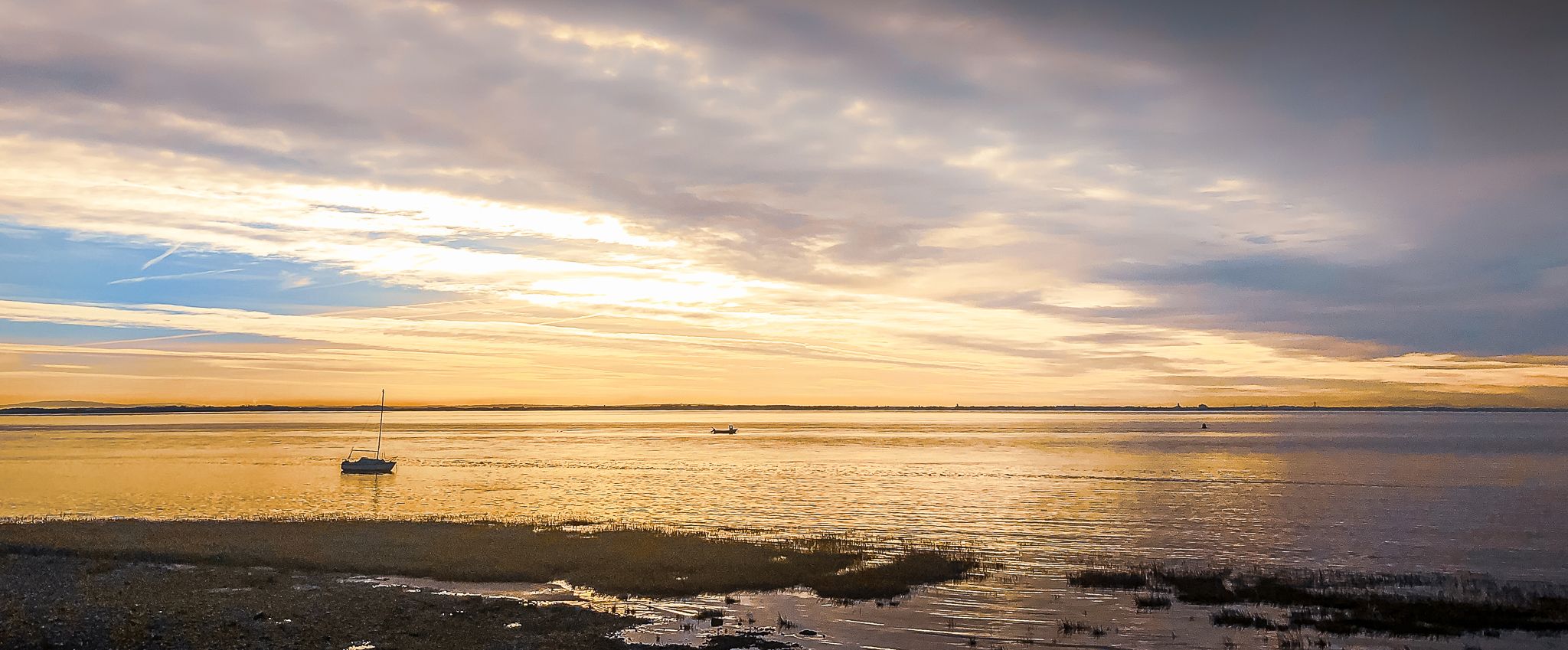
The Coastal Path along the front of Lytham has significant history with monuments along the way and amazing views of the Lake District and Bolton.
0
0

Tip5 Alternative Start Points with Parking for the 4 Tours Tour1 The Marina Carpark at Preston Marina The Marina Carpark Position is: 53.761540,-2.738572 Either: Paste the above line into the Google Maps app "Search here" box and then search - click the magnifying glass icon. Or: open your web browser and search for Google Maps 53.761540,-2.738572 Ashton Park Car Parks Link: Ashton Park Highlight https://www.komoot.com/highlight/5137829 Highlight7 on the Tour1 map
0
0
Tip4 Part (a) below explains the use of a split-screen using 2 web browsers. In Part (b), a practical example, you can use either the single web browser or the 2 web browsers method. (a) How To View In Split-Screen on Windows Using Two Web Browsers - example Microsoft Edge and Chrome. This method is similar to and slightly easier than the method in Tip3, part b). Open this highlight in both web browsers on the Windows PC. Their icons will be visible on the Windows taskbar. Then display one browser on the left side of the screen and one on the right. Open this highlight in both web browsers on the Windows PC. Their icons will be visible on the Windows taskbar. Then display one browser on the left side of the screen and one on the right. (b) Practical Use of a Split Screen Use a split screen to practise zooming into and out of a photo in a slide show. Create a split screen on an Android phone. On one half display the instructions in Tip1 on how to Enlarge a Photo in a Slideshow. Use e.g. a Chrome or Firefox browser on the other half to open the slideshow and display photo3 in the Chrome or Firefox browser. Then practise zooming in and out of photo3. Similarly, using a Windows PC and Photo3 practise the Windows PC instructions on how to zoom-in and out.
0
0
Tip3 How To Split-Screen The aim is, for example, to view relevant Tips or Comments alongside a photo or map. Photo4 shows a split-screen (from Tour1) on an Android phone. View photos or the route map on one half and the description on the other half of the screen. Scroll the 2 halves independently to compare a photo with e.g. a description in the Tips or Comments. If using a tablet or mobile, view the description in the website and the photo in the Komoot app - easier to pinch-zoom to see different parts of the photo. Instructions for (a) Android phone (b) Windows PC/Laptop For an iPhone search online for "Harris iPhone split screen" (a) Android Phone Check online for your Android phone. Not all models support split screen. Tap below to start a video - how to use split-screen. On a mobile, view in landscape. https://www.youtube.com/watch?v=zuiKgagO71Y (b) Windows PC/Laptop Easy in Windows 10/11. You can open the same Highlight (or Tour) using 2 web browsers, such as Microsoft Edge and Chrome, one on the left and one on the right of the screen. Or, you can use a single web browser displayed in 2 windows on the left and the right. Use these instructions to practice the technique. The first instructions below use a single web browser, e.g. Microsoft Edge. Using two web browsers is a little easier - see Tip4. 1) On your Windows PC/laptop, maximise the window if not already full-screen. Copy this highlight's Komoot web address. You need to paste it - see below. 2) Opposite-click this browser's tab on the Windows taskbar. That means click the other mouse button. Then click 'Open new window'. When opened, maximise it, paste and open the web address in the new window and scroll to these instructions so that you can continue to follow them. 3) Press and hold the Windows key on the keyboard and press the left arrow key. The active window moves to the left of the split-screen. 4) You should now see the right-hand half of the first window. Click that window to display it 'on top'. These instructions should still be visible in that window. Check that it's full screen. Press and hold the Windows key again and press the right arrow key. 5) The two windows should now display side-by-side. Scroll one window to display the 1st photo and open the slideshow. Scroll the other for the photo descriptions in the Tips. Then display a photo in one half and a corresponding description in the other.
0
0

The crossroads southeast of Wharles offer fabulous lanes whichever way you choose. It's all fairly flat and agricultural, so nice views as well.
0
0
Freckleton에서 가장 인기 있는 경로
Freckleton에서 가장 인기 있는 명소


더 살펴보기
다른 지역의 최고의 MTB 트레일를 살펴보세요.
