FreckletonのおすすめMTBライド
4.0
(76)
219
ライダー
15
ライド
Freckleton周辺でのマウンテンバイクは、その地形を最大限に楽しむのに最適なスポーツですが、ライドのスタート地点を探すのが難しいこともあります。Freckleton周辺でおすすめのルートが見つかるように、人気マウンテンバイクルートをご紹介します。
最終更新日: 10月 13, 2026
4.2
(72)
186
ライダー
35.1km
01:58
160m
160m
初級者向けMTBライド. あらゆるフィットネスレベルに適しています。 あらゆるスキルレベルに適しています。
4.0
(2)
15
ライダー
21.1km
01:12
100m
100m
初級者向けMTBライド. あらゆるフィットネスレベルに適しています。 あらゆるスキルレベルに適しています。

3.0
(1)
8
ライダー
54.9km
02:49
170m
170m
中程度のマウンテンバイクライド. ある程度のフィットネスレベルが必要です。 あらゆるスキルレベルに適しています。
5.0
(1)
4
ライダー
40.2km
02:20
320m
320m
中程度のマウンテンバイクライド. ある程度のフィットネスレベルが必要です。 あらゆるスキルレベルに適しています。
1
ライダー
42.4km
02:12
150m
150m
中程度のマウンテンバイクライド. ある程度のフィットネスレベルが必要です。 あらゆるスキルレベルに適しています。
さらに多くのルートや他のユーザーのおすすめ情報を確認できます。
すでにアカウントをお持ちですか?
おすすめのツアーは他のkomootユーザーが実際に経験した何千ものアクティビティに基づいています。
無料アカウントで今日から始めよう
次の冒険が待っています。


コミュニティからのヒント

TP1096 - Beacon Fell | Trig Point | TrigpointingUK | TrigpointingUK https://share.google/cOJhenoIPjzqz6JKJ
0
0


first trip on an electric bike, I'm disabled with paralysis of left arm and was slightly apprehensive not just about my disability but the fact I hadn't owned or ridden a push bike in over 40 years. what a rush this was, apart from a small part that was more of a downhill rough path with 4 barriers with which I decided to walk down, nice and very scenic route and totally enjoyed ever part of it
0
0


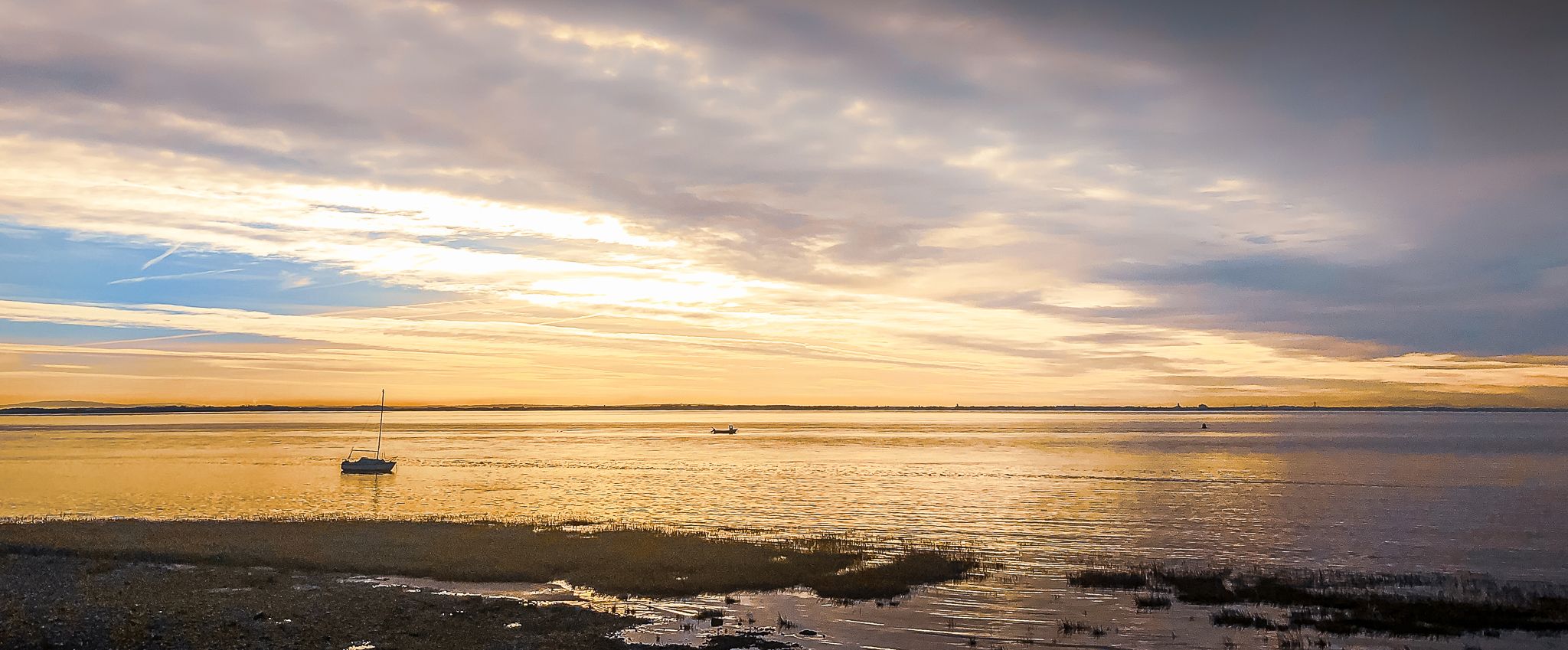
The Coastal Path along the front of Lytham has significant history with monuments along the way and amazing views of the Lake District and Bolton.
0
0

Tip5 Alternative Start Points with Parking for the 4 Tours Tour1 The Marina Carpark at Preston Marina The Marina Carpark Position is: 53.761540,-2.738572 Either: Paste the above line into the Google Maps app "Search here" box and then search - click the magnifying glass icon. Or: open your web browser and search for Google Maps 53.761540,-2.738572 Ashton Park Car Parks Link: Ashton Park Highlight https://www.komoot.com/highlight/5137829 Highlight7 on the Tour1 map
0
0
Tip4 Part (a) below explains the use of a split-screen using 2 web browsers. In Part (b), a practical example, you can use either the single web browser or the 2 web browsers method. (a) How To View In Split-Screen on Windows Using Two Web Browsers - example Microsoft Edge and Chrome. This method is similar to and slightly easier than the method in Tip3, part b). Open this highlight in both web browsers on the Windows PC. Their icons will be visible on the Windows taskbar. Then display one browser on the left side of the screen and one on the right. Open this highlight in both web browsers on the Windows PC. Their icons will be visible on the Windows taskbar. Then display one browser on the left side of the screen and one on the right. (b) Practical Use of a Split Screen Use a split screen to practise zooming into and out of a photo in a slide show. Create a split screen on an Android phone. On one half display the instructions in Tip1 on how to Enlarge a Photo in a Slideshow. Use e.g. a Chrome or Firefox browser on the other half to open the slideshow and display photo3 in the Chrome or Firefox browser. Then practise zooming in and out of photo3. Similarly, using a Windows PC and Photo3 practise the Windows PC instructions on how to zoom-in and out.
0
0
Freckletonの人気観光スポット

komootモバイルアプリでインスピレーションを得よう


さらに探索
他の地域の最高のMTBトレイルを見てみましょう。
